Monitor, rename, and unlink a server
Track live host health, review 24-hour resource history, configure snapshot disk space, rename a server, or disconnect it from your account at app.odac.run. Open Servers from the top-right user menu to view all machines in your Linked servers list.
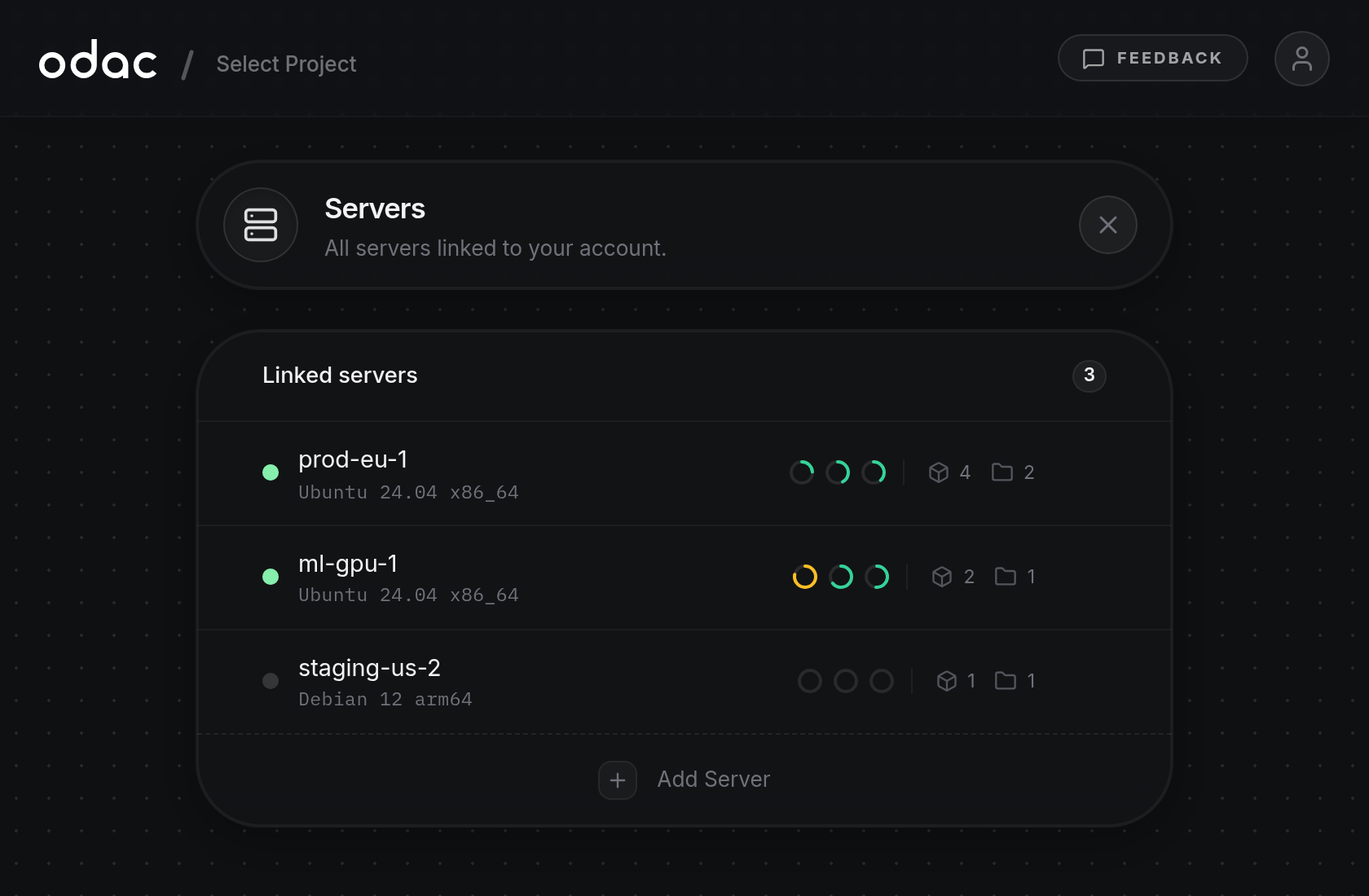
Read the Linked servers list
- Open your avatar menu in the top-right header and click Servers (see Connect a server). The Linked servers card shows the total server count badge on the right and lists every server connected to your account. Read each row from left to right: a pulsing green status dot means the server is online and a solid gray dot means it is offline, followed by the server name and its operating system and architecture (such as Ubuntu 24.04 x86_64), three live resource rings for CPU, RAM, and Disk (green below 70%, amber from 70% to 89%, red at 90% and above, and empty when offline), and the app and project counts beside the box and folder icons.
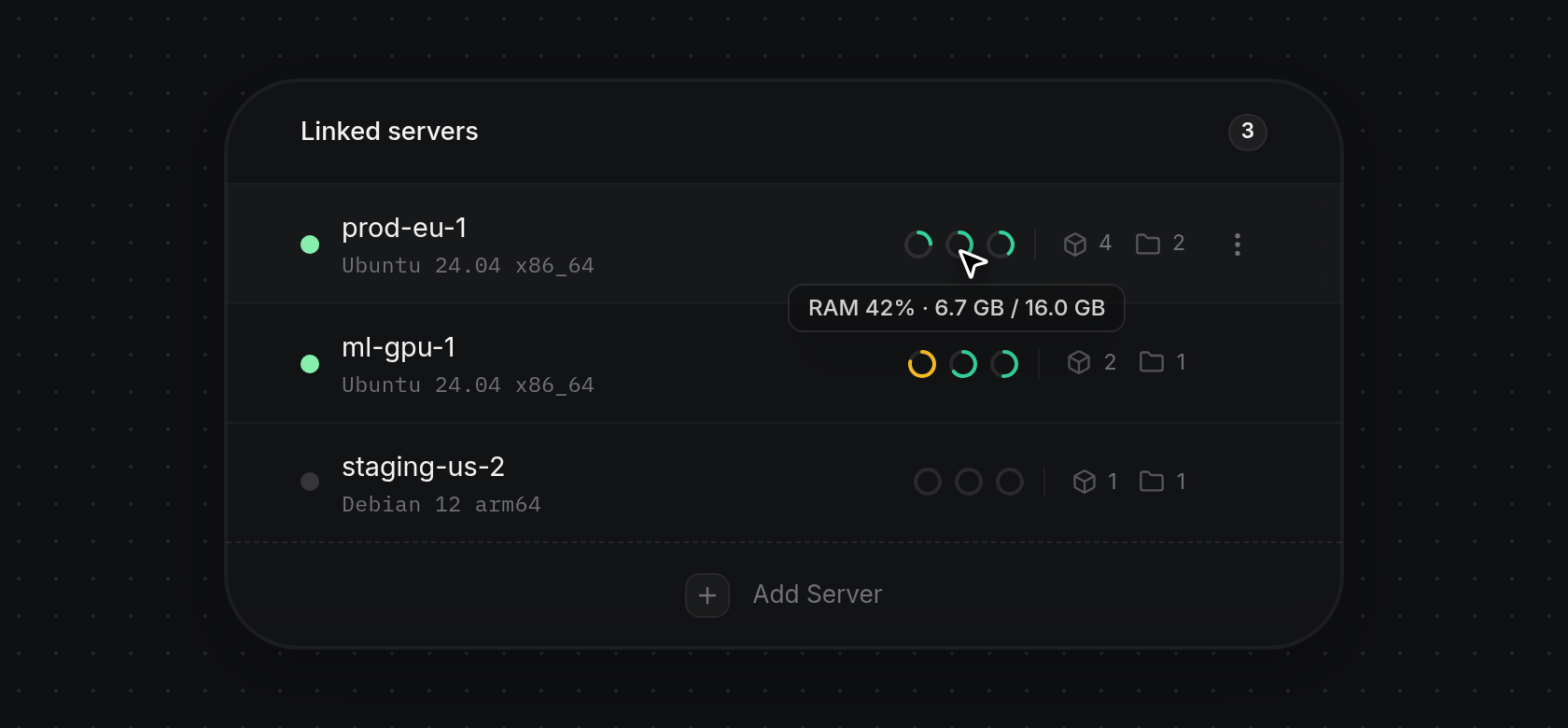
- Hover over any CPU, RAM, or Disk ring on an online row to display a tooltip with the live percentage and capacity details (for example, RAM 42% · 6.7 GB / 16.0 GB).
Inspect 24-hour resource history
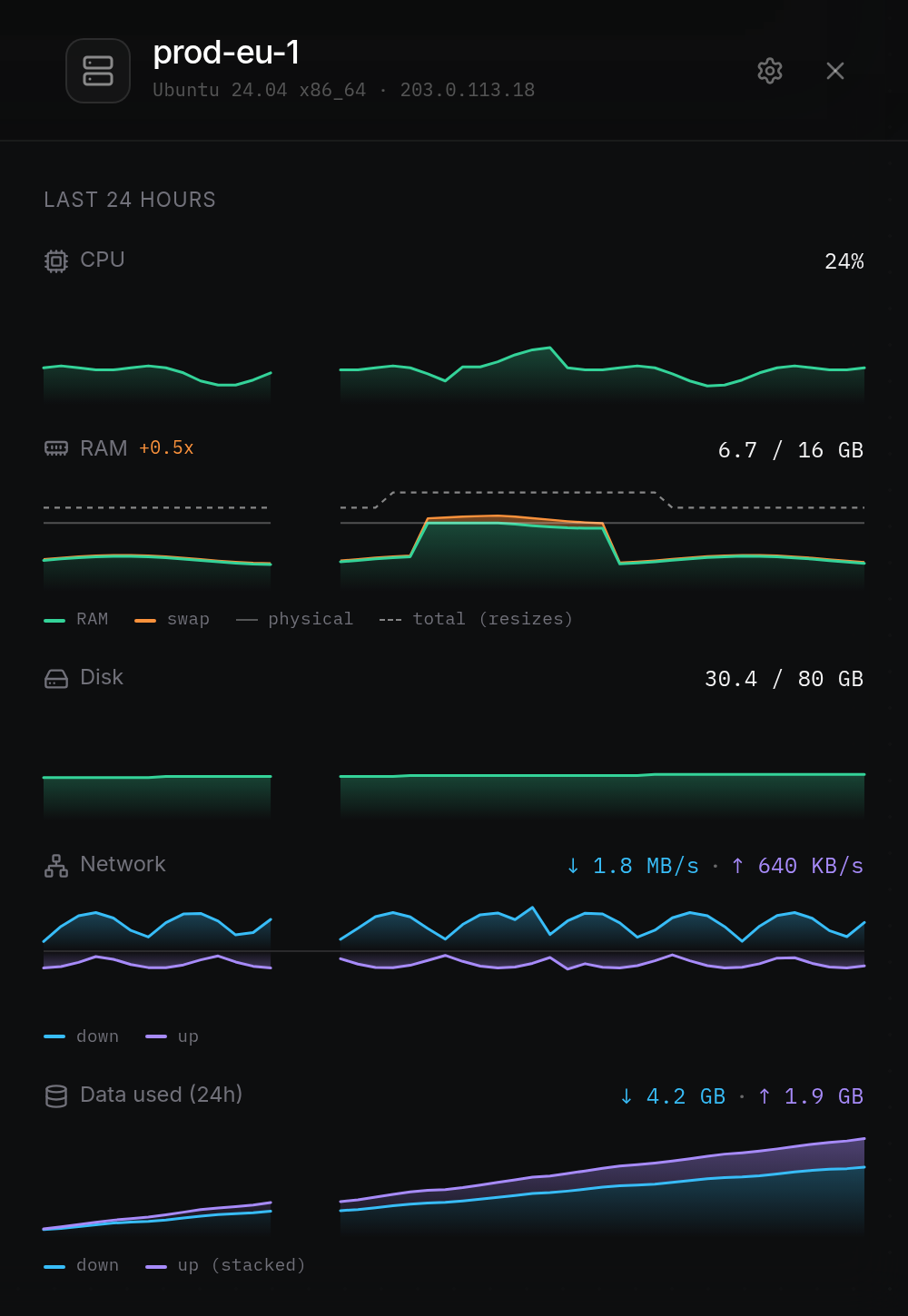
- Click any server row to highlight it and slide open the server inspector drawer on the right. The drawer header displays the server name, operating system, architecture, and IP address, with Settings (gear icon) and Close (
×) buttons on the right. Below the header, Last 24 hours shows live-updating header values (percentage for CPU and GPU when present, and used/total capacity for RAM and Disk) alongside 24-hour area trends. Click the same row again, click Close (×), click outside the drawer, or pressEscapeto close it, or click another server row to switch servers.
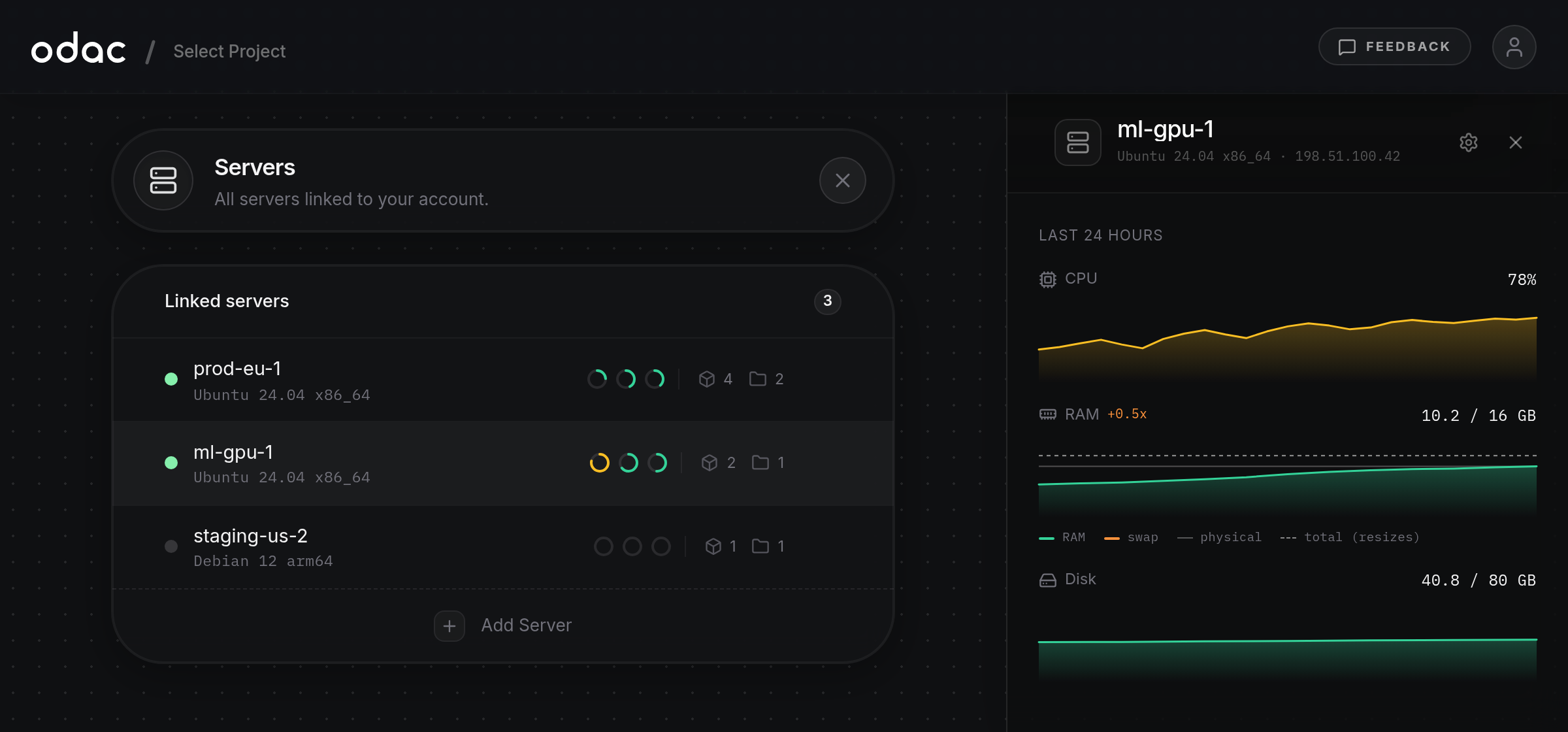
- Scroll through Last 24 hours to read every metric: RAM shows used/total memory on the right and stacks swap (orange) over RAM (green) with a solid physical RAM line, a dashed total (resizes) capacity line as ODAC adjusts swap dynamically, and an orange badge such as +0.5x next to RAM (hover it to read how dynamic swap protects running apps); Network mirrors down (cyan) upward and up (violet) downward from a center axis with live rates on the right; and Data used (24h) stacks up (stacked) over down with total 24-hour transfer on the right. Stretches where the server was offline appear as gaps in the lines, and charts with no recorded readings yet display
No data yet.
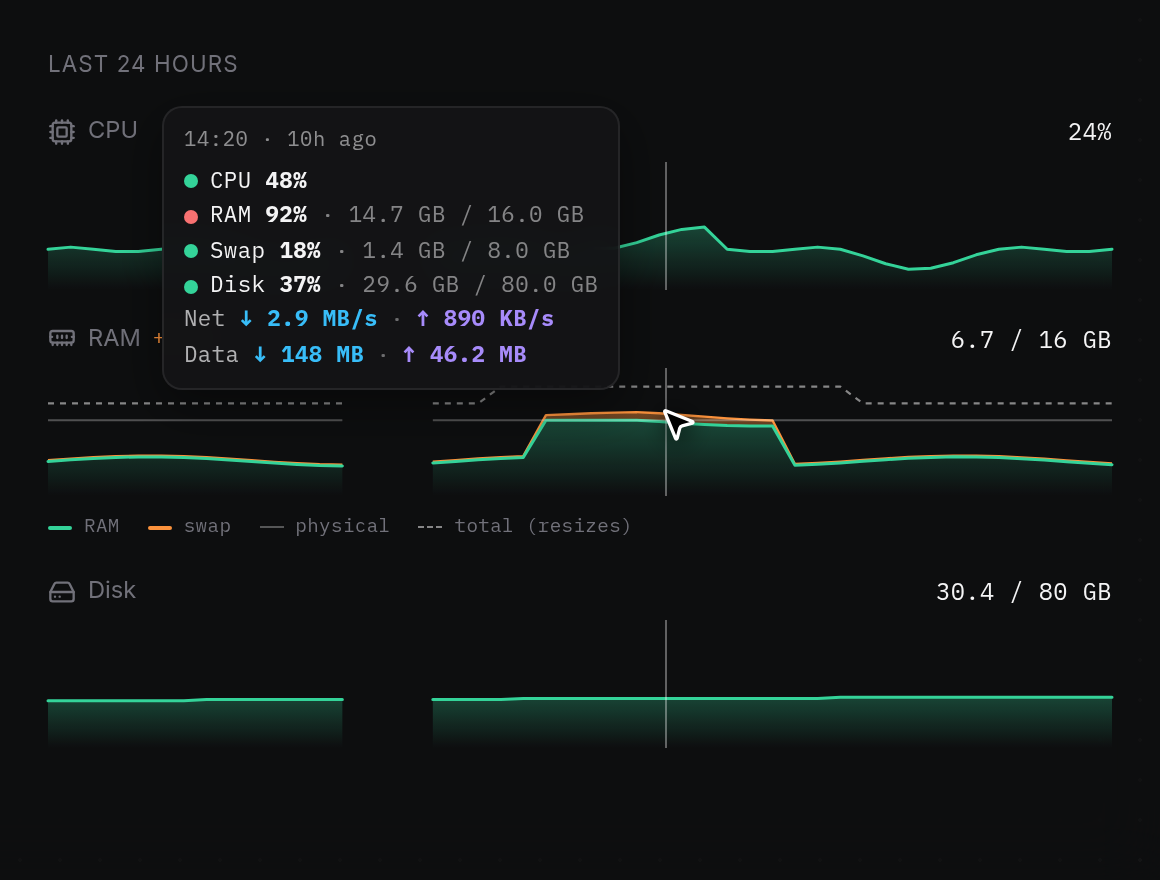
- Hover over any chart to show a synchronized vertical crosshair across all charts and a floating tooltip with the clock time, relative age (such as 10h ago), and exact values for CPU, RAM, Swap, Disk, Net, GPU (with VRAM and temperature when available), and Data moved during that slice.
Configure snapshot space
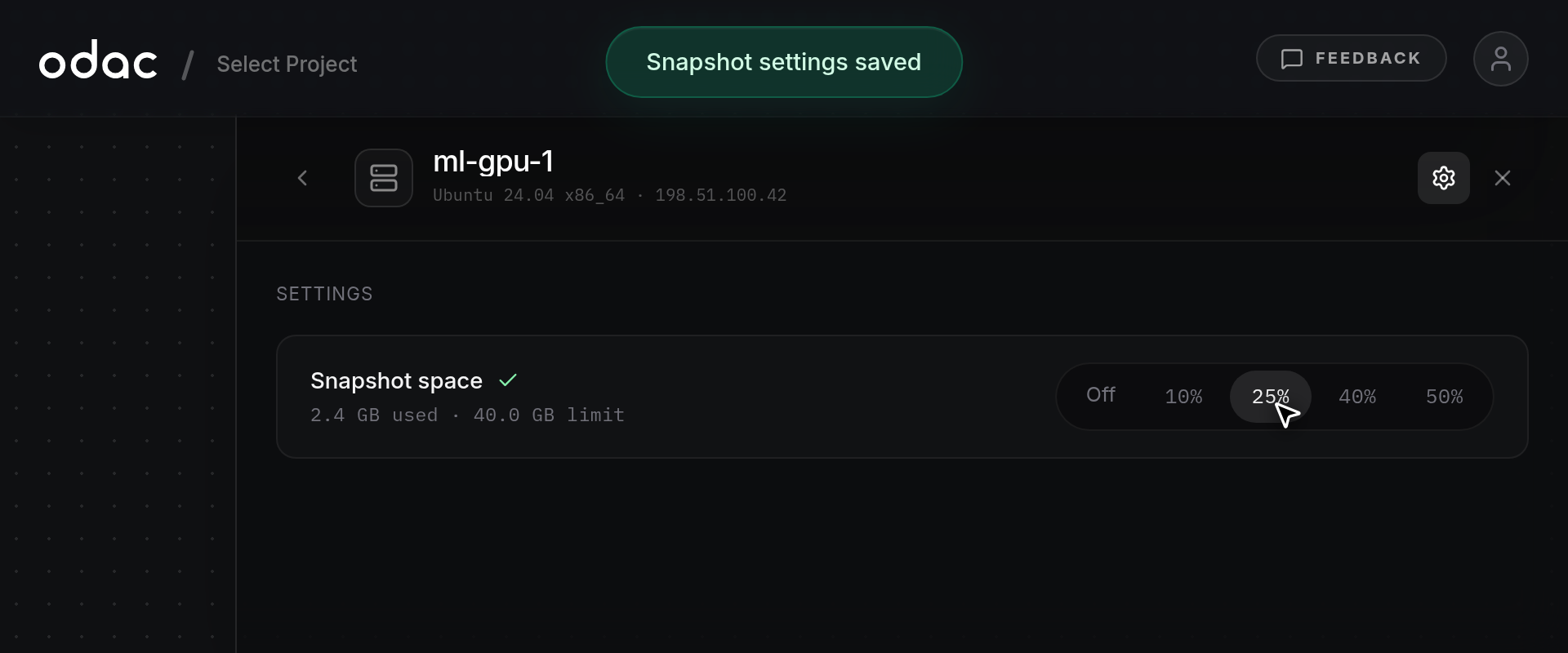
Click Settings (the gear icon) in the server inspector header. The drawer widens, reveals a Back arrow on the left of the header, and opens Settings showing Snapshot space with its current space usage and limit below.
Select Off, 10%, 25%, 40%, or 50% in the segmented control to set how much disk space the server reserves for local app snapshots (see Restore data from backups and snapshots). ODAC saves immediately, shows a checkmark next to Snapshot space alongside
Snapshot settings saved, and lets you return to Last 24 hours with Back (orEscape). If the server is offline or has not reported snapshot status yet, a notice explains its state.
Rename a server
- Hover over the server row you want to rename, click the Actions (⋮) button on the right, and click Rename.
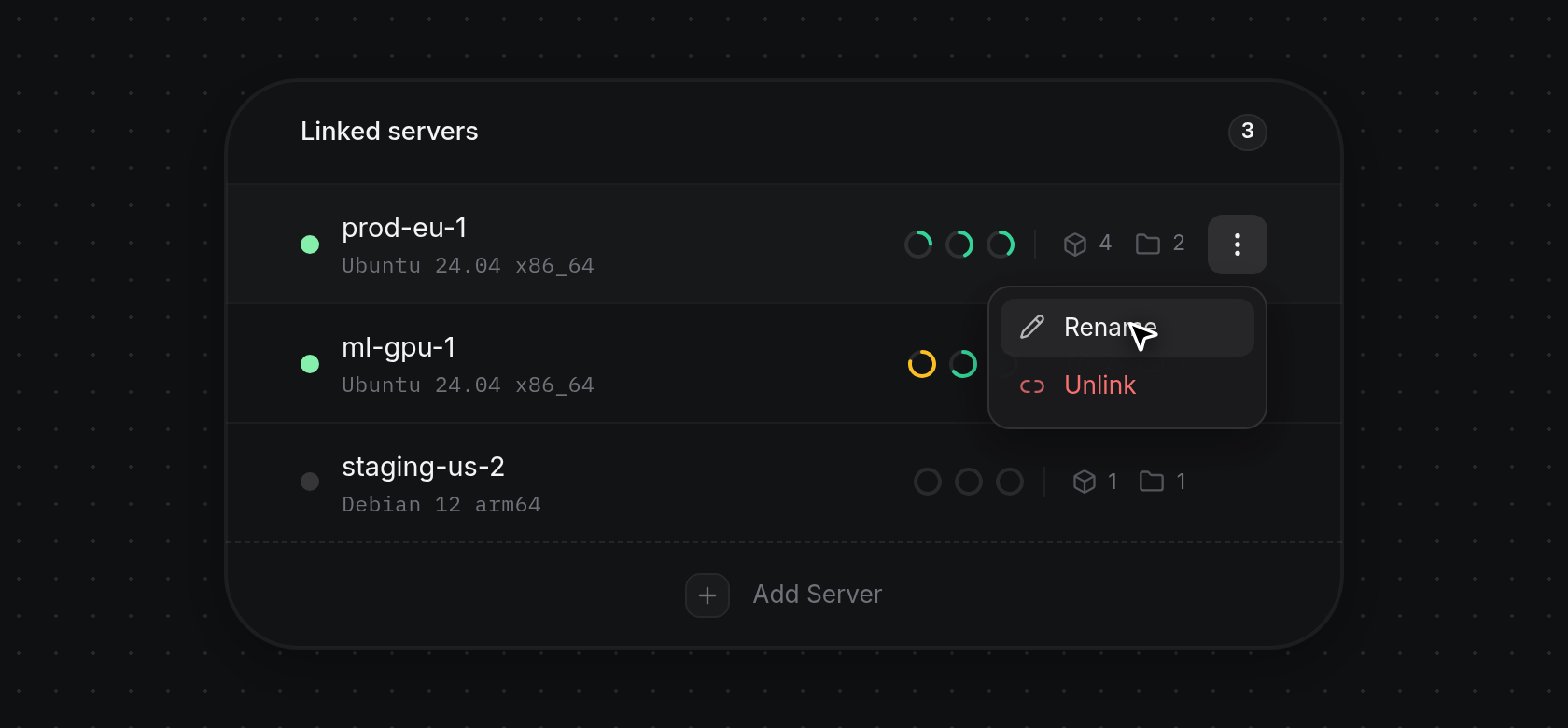
- The row hides its rings and counts and switches the server name into an inline text field with Save (green checkmark) and Cancel (
×) buttons on the right. Enter a name between 3 and 32 characters (entering fewer than 3 characters showsServer name must be 3–32 characters.).
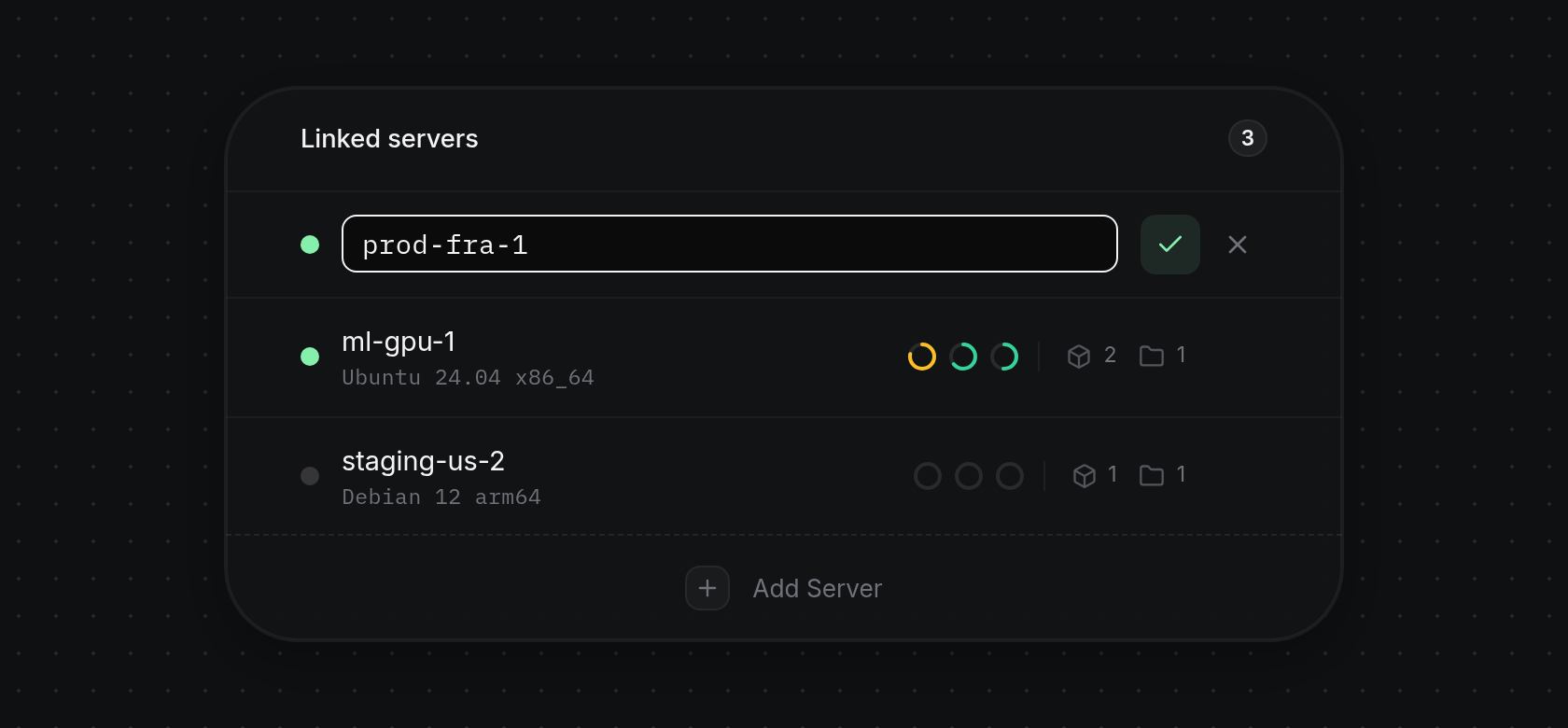
- Press Enter or click Save (the green checkmark) to confirm the new name, or press Escape, click Cancel (
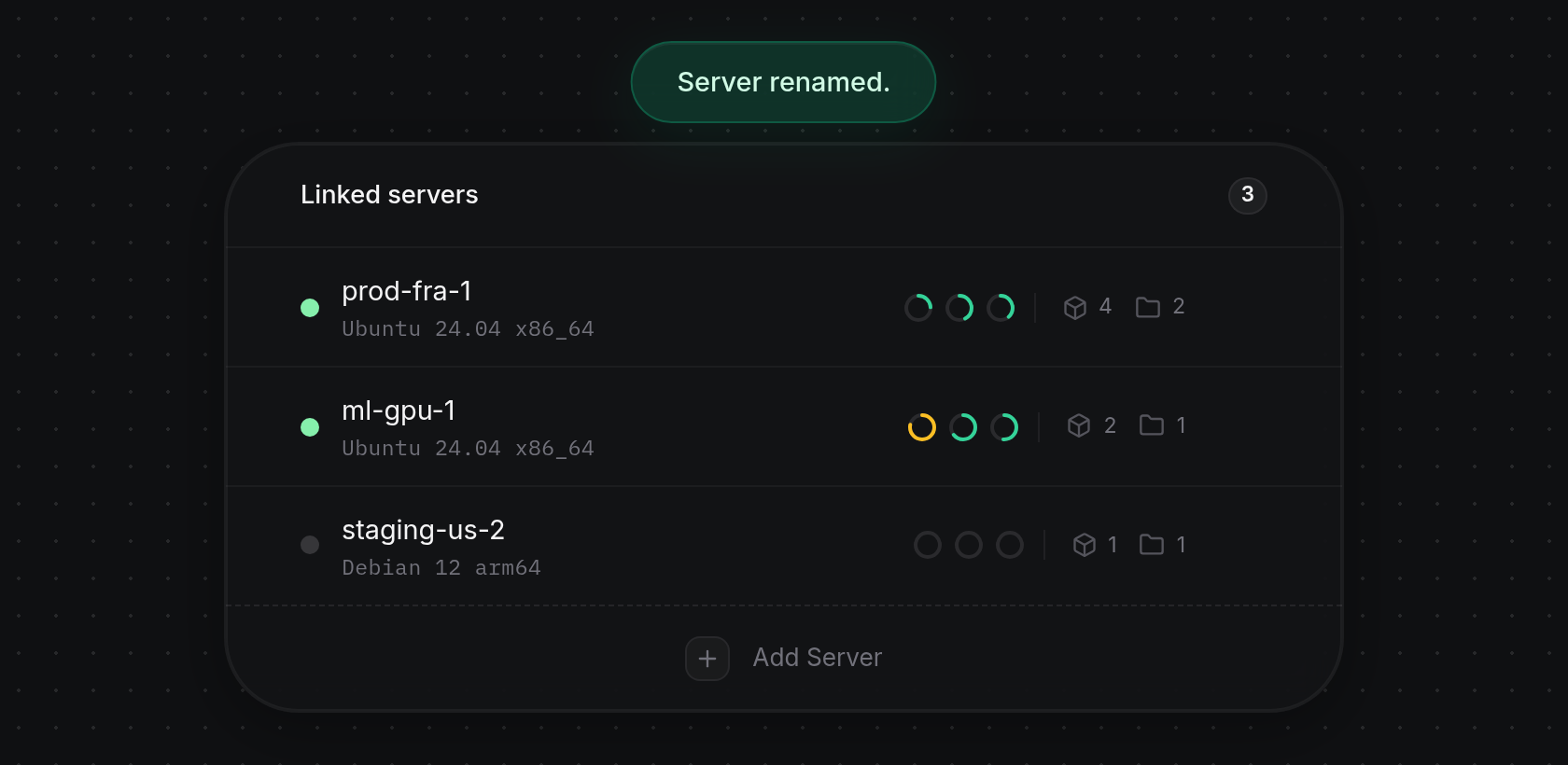
×), or click outside the field to discard your edit. Once saved, the row updates immediately and a greenServer renamed.notification appears at the top of the screen.
Unlink a server
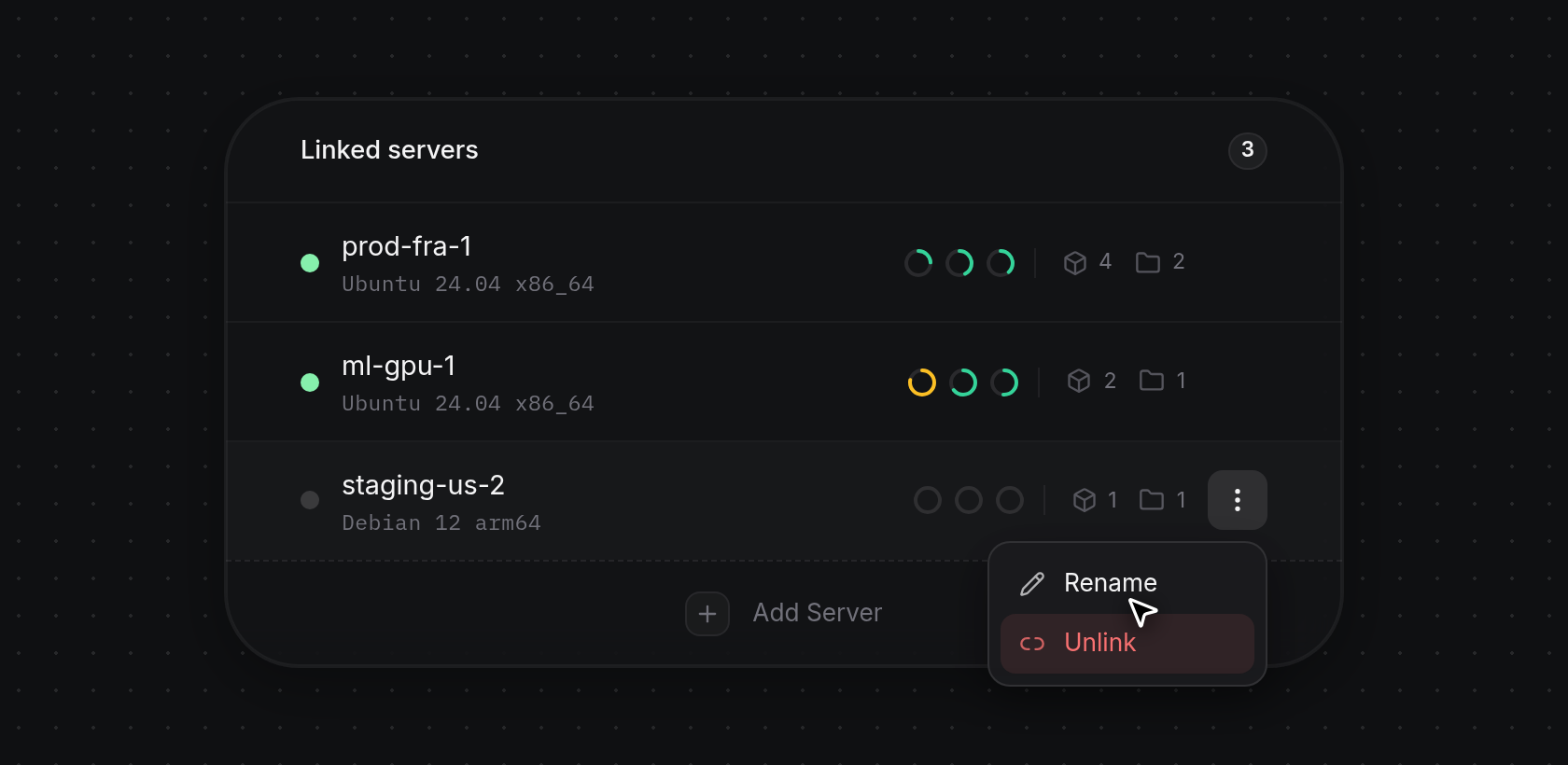
- Hover over the server row you want to disconnect, click the Actions (⋮) button on the right, and click Unlink.
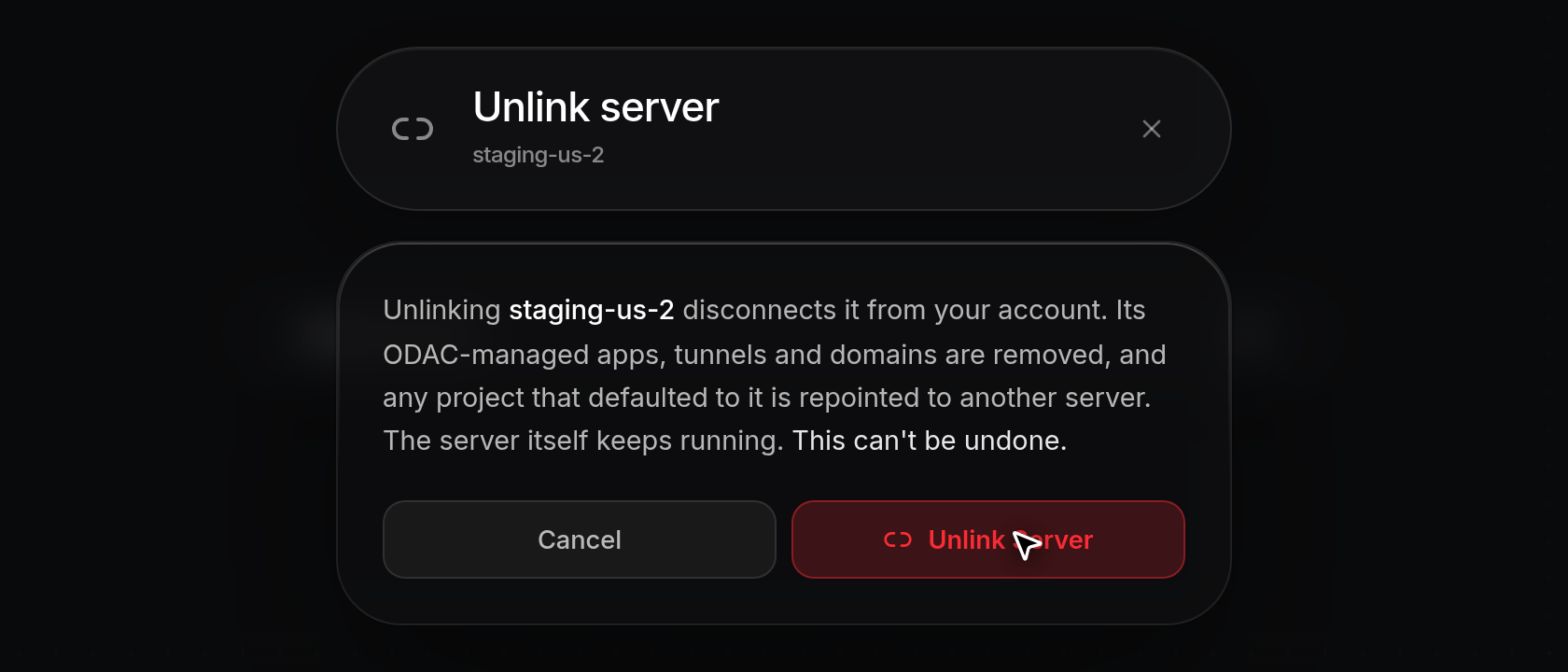
- In the Unlink server dialog, read the confirmation notice: unlinking disconnects the server from your account, removes its ODAC-managed apps, tunnels, and domains, and repoints any project that defaulted to it to another server, while leaving the server itself running. Click Cancel to keep it, or click Unlink Server to confirm.
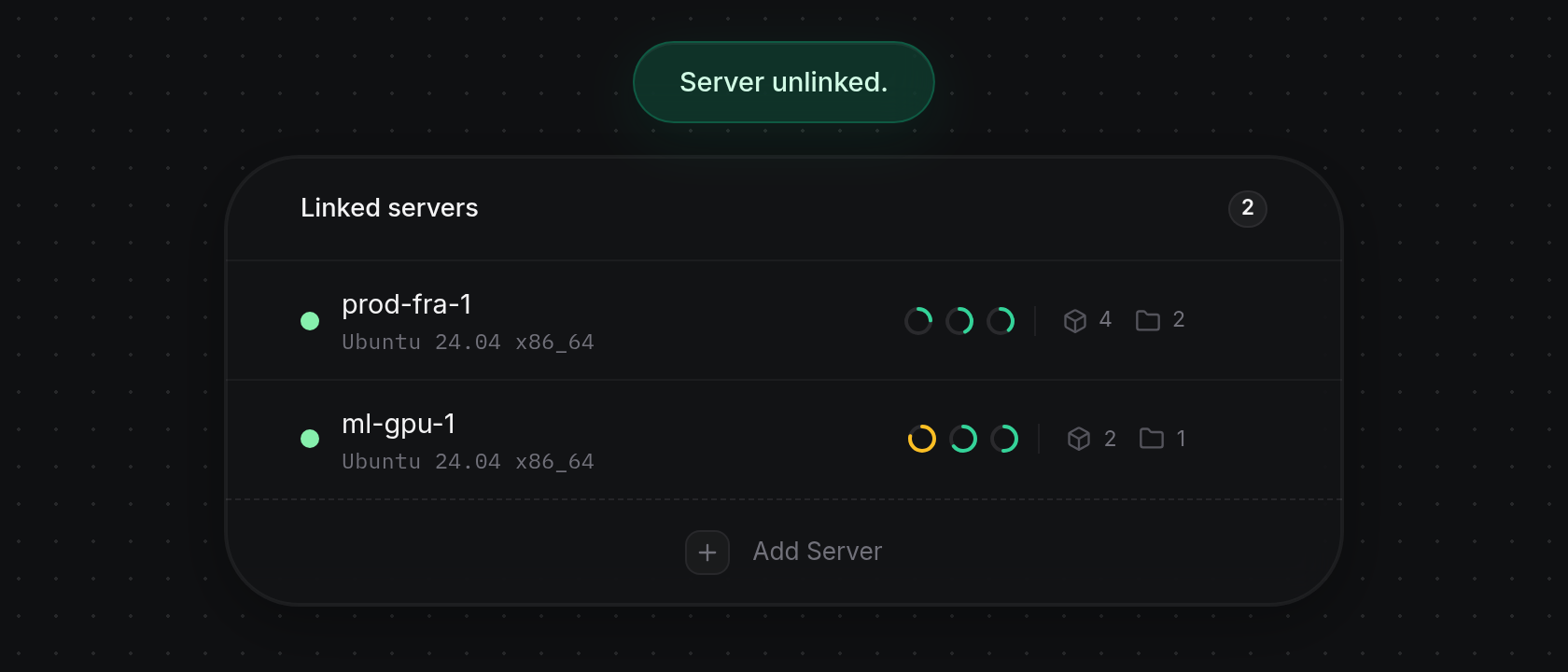
- The server row is removed from Linked servers and ODAC shows
Server unlinked.at the top of the screen.